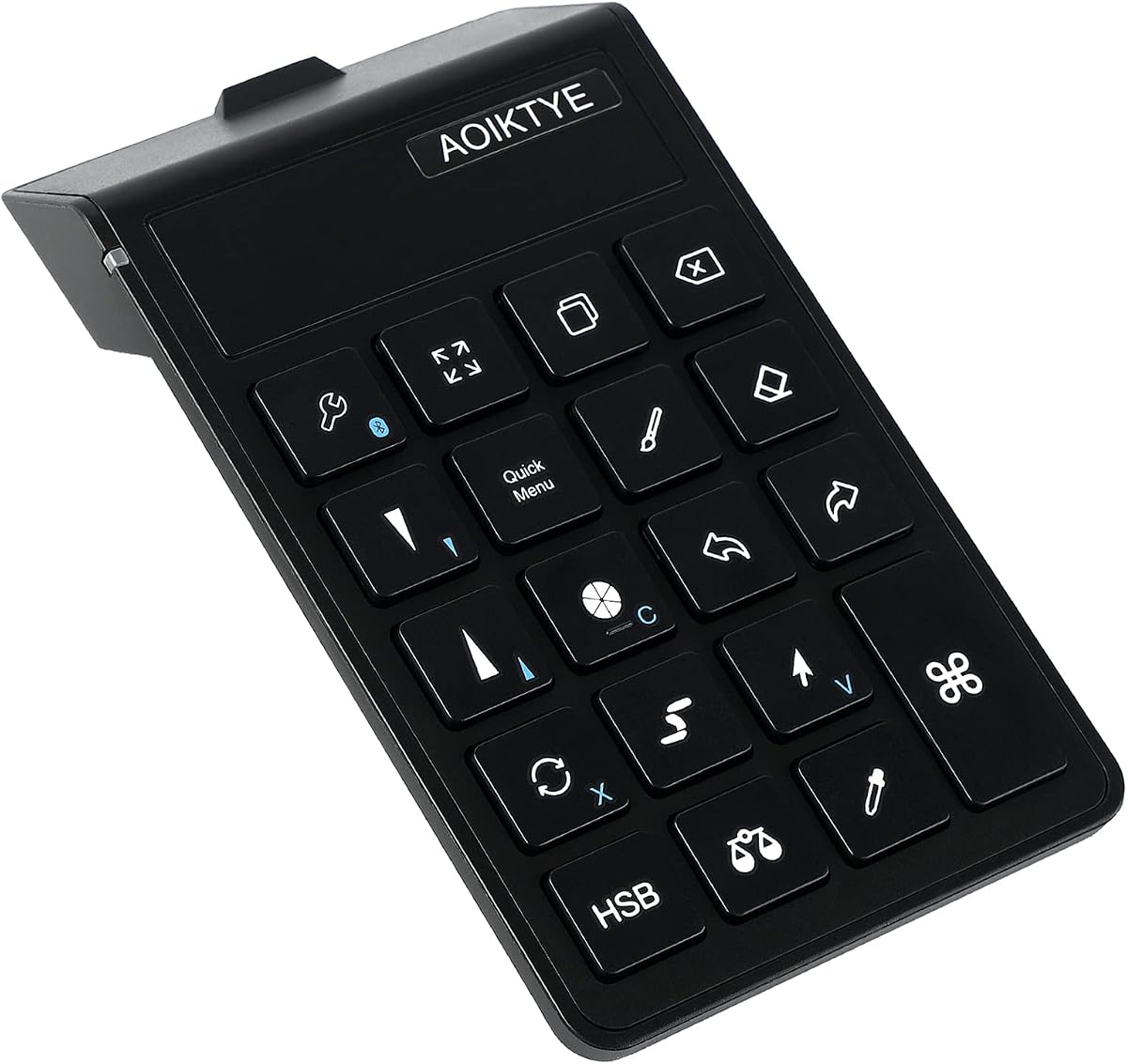
Keyboard for Procreate, 22 Shortcut Keys Wireless Keyboard for iPad Digital Drawing
4.5Editor score
Optimized for Procreate app
Up to 84 hours battery life
Ergonomic key placement design
This guide compares the top ten iPad Drawing Bluetooth Controller options to help artists find the perfect wireless keypad for Procreate and digital art
Digital artists often need more than a stylus to work efficiently on tablets. An iPad Drawing Bluetooth Controller offers programmable shortcuts and dials that streamline complex tasks like brush sizing and layer management without leaving the canvas.
We evaluated ten real products based on connectivity, customization options, and ergonomic design. Our analysis focuses on devices that integrate smoothly with major creative apps while providing reliable wireless performance for daily professional use.
Each selection highlights unique strengths such as battery life, key count, and software compatibility. Remember that prices and availability can change frequently, so check the latest details before making your final purchase decision for your setup.
4.5Editor score

4.2Editor score

5.0Editor score
The following table provides a side-by-side overview of all ten products to help you quickly compare key specifications and features across the entire selection.


The HUION Keydial Mini ranks as the top pick for iPad artists seeking a versatile wireless solution. With a solid 4.2 rating it offers a balanced mix of programmable keys and a dial for precise control.
We may earn a commission when you buy through this link, at no additional cost to you.
Its 18 shortcut keys allow you to map complex commands to single taps while the dial adjusts brush sizes or timelines effortlessly. The Bluetooth 5.0 connection ensures stable performance up to ten meters away.
While it requires driver setup for full customization on iPads the preview function helps you remember key layouts without memorization. Some users might find the layout slightly challenging for left-handed dominance.
Digital painters and video editors will appreciate the broad compatibility with apps like Photoshop and Final Cut Pro. This device streamlines workflows by keeping essential commands within reach without cluttering the screen.
Customizable shortcuts reduce the need to switch hands from stylus to keyboard during intense drawing sessions.
With up to 70 hours of battery life you can work all day without frequent recharging interruptions.
We may earn a commission when you buy through this link, at no additional cost to you.
Designed specifically for Procreate users this keyboard offers an excellent entry point into wireless control. Its 4.5 rating reflects high satisfaction among artists who value simplicity and long battery life.
We may earn a commission when you buy through this link, at no additional cost to you.
The layout places frequently used functions like color selection and brush adjustment in accessible spots for the left hand. This setup allows you to draw with the right hand while managing layers and tools easily.
While it shines with Procreate compatibility some functions may not translate perfectly to other creative suites. The battery life is impressive at 84 hours but you may need to charge it periodically for heavy use.
Beginners and hobbyists looking for an affordable boost to their iPad setup will find this device ideal. It simplifies the digital drawing process without requiring complex driver installations or extensive configuration steps.
Specific shortcuts for Procreate make common tasks like undo and color picking significantly faster.
The extended 84 hour runtime ensures the device lasts through multiple art sessions without frequent charging.
We may earn a commission when you buy through this link, at no additional cost to you.
This controller stands out with its dual dial design allowing simultaneous control over two parameters like zoom and opacity. A perfect 5.0 rating indicates exceptional quality and user satisfaction among professional creators.
We may earn a commission when you buy through this link, at no additional cost to you.
The tactile markers on keys let you operate the device by feel without looking away from your artwork. This feature maintains creative flow by reducing eye strain and increasing confidence during precise adjustments.
Although it carries a higher price tag the ergonomic design and feature set justify the cost for serious artists. The battery life is solid but slightly lower than some competitors due to the added dial functionality.
Professionals who need granular control over their digital tools will benefit most from this premium option. It bridges the gap between a simple keyboard and a full control surface effectively.
Using two dials lets you adjust brush size and canvas rotation simultaneously for efficient multitasking.
Raised markers on each key ensure you never press the wrong command by mistake during use.
We may earn a commission when you buy through this link, at no additional cost to you.
While primarily marketed as a game controller this device supports drawing modes that allow for keyboard and mouse emulation. Its 3.4 rating suggests it is a niche choice rather than a dedicated art tool for artists.
We may earn a commission when you buy through this link, at no additional cost to you.
The analog sticks and triggers offer precise input which can be mapped for specific drawing functions in compatible software. Custom mapping provides flexibility but requires time to configure correctly for non gaming tasks.
Artists looking for a single device for both gaming and art might find it useful. However the lack of dedicated art shortcuts makes it less efficient than specialized keyboards for pure creative work.
It is a viable option for users who want a dual purpose tool without buying separate controllers. The ergonomic design ensures comfort during long sessions whether playing games or sketching on the iPad.
Switch between gaming and drawing modes to maximize the utility of your Bluetooth connection.
Map your favorite functions to physical buttons to avoid on screen touch inputs.
We may earn a commission when you buy through this link, at no additional cost to you.
This remote offers a trackpad that can move the cursor on your iPad screen making it useful for navigation. With a 3.6 rating it serves more as a utility tool than a dedicated art input device.
We may earn a commission when you buy through this link, at no additional cost to you.
The included Home button allows quick app switching which helps when moving between reference images and your drawing app. It also controls media playback making it handy if you listen to music while creating.
It lacks the programmable keys needed for complex drawing shortcuts so it may not boost speed for detailed work. The trackpad is a nice touch for precision selection without touching the screen directly.
Artists who need a general remote for media and navigation will find this a good complement to their stylus. It is best suited for those who want control over their device environment rather than direct drawing input.
The built-in trackpad lets you navigate your iPad screen with mouse-like precision from a distance.
Control playback and volume without interrupting your workflow or breaking creative focus.
We may earn a commission when you buy through this link, at no additional cost to you.
Designed for creative workflows this keydial features ten customizable keys and a dial for zooming in editing software. A 4.3 rating shows it is a reliable tool for video editors and graphic designers alike.
We may earn a commission when you buy through this link, at no additional cost to you.
The 400 hour battery life ensures you rarely need to charge the device during normal use. Its thin profile makes it easy to slip into a bag for on-the-go editing sessions at cafes or studios.
Setup on iOS requires downloading the Shortcut Remote app which adds a step before full functionality is available. The anti-ghosting feature ensures that multiple key presses register correctly during complex shortcuts.
If you work across multiple apps this device offers flexibility with its wide software compatibility. It is a practical addition for anyone who needs consistent control over digital tools without cluttering the workspace.
Rotate the dial to adjust canvas views or timeline positions with immediate tactile feedback.
With 400 hours of power the device supports heavy daily use over many months between charges.
We may earn a commission when you buy through this link, at no additional cost to you.
The TourBox Lite brings a refined eight key layout with a knob and wheel for precise adjustments. It holds a 4.4 rating and is praised for its smooth integration across various creative apps without needing reconfiguration.
We may earn a commission when you buy through this link, at no additional cost to you.
Automatic app detection switches your settings based on the active program so you do not have to manually change modes. The on screen HUD shows current mappings so you always know what each button does.
While the key count is lower than some competitors the ergonomic design makes every touch intuitive. It is a great tool for artists who value a natural grip and tactile feedback during long sessions.
Photographers and illustrators who need consistent controls across different software will appreciate its unified approach. It helps maintain flow by removing the friction of learning new shortcuts for each new application you open.
The device recognizes your active app and updates controls automatically for seamless workflow transitions.
Shaped to fit the hand naturally it reduces fatigue during extended drawing or editing periods.
We may earn a commission when you buy through this link, at no additional cost to you.
This controller is built for high performance with Hall Effect sticks and a gyroscope for precise motion control. It has a 5.0 rating and appeals to users who want a robust device that handles both gaming and potential drawing inputs.
We may earn a commission when you buy through this link, at no additional cost to you.
The magnetic interchangeable parts allow you to personalize the look and function to match your preferences. It supports a wide range of tablet sizes ensuring a secure fit for various iPad models on the market.
While primarily designed for gaming the customization options make it adaptable for creative tasks if mapped correctly. The dual vibration motors offer feedback that can be useful for differentiating between commands.
Artists who also game will find this a versatile addition to their setup. Its durability and precise controls ensure it can handle intense sessions without wear or performance degradation over time.
Hall Effect technology provides smooth and accurate input that does not degrade with usage over time.
Magnetic parts let you change buttons or shapes to suit your specific workflow needs.
We may earn a commission when you buy through this link, at no additional cost to you.
This device is made exclusively for Clip Studio Paint offering seamless integration with the application features. With a 4.0 rating it is a strong choice for digital illustrators who rely on CSP for their daily work.
We may earn a commission when you buy through this link, at no additional cost to you.
Buttons can be assigned to common actions like layer switching or zooming to speed up production. The included one year license for the debut version of the software adds extra value for new users.
It uses Bluetooth Low Energy which preserves battery life on your iPad and the device itself. However you must buy AA batteries separately which is an added cost compared to rechargeable options.
If you primarily use Clip Studio Paint this controller will streamline your workflow effectively. It is less versatile for other apps but excels at reducing repetitive tasks within its dedicated environment.
Designed for Clip Studio Paint it provides shortcuts that map directly to the software interface.
Included license for the software means you can start drawing immediately after setting up the device.
We may earn a commission when you buy through this link, at no additional cost to you.
This Wacom tablet allows you to draw directly on a surface with a battery free pen that mimics real paper. It has a 4.4 rating and is trusted by professionals for its pressure sensitivity and accuracy.
We may earn a commission when you buy through this link, at no additional cost to you.
Wireless Bluetooth connectivity lets you place the tablet anywhere while maintaining a stable connection to your iPad. It serves as a dedicated drawing tool rather than a shortcut keypad but can enhance detail work.
It comes with software and training resources to help you get started quickly with digital art. The compact size makes it easy to store but requires some desk space to use effectively.
Artists who want a traditional drawing experience without using a stylus on the screen will love this. It offers precision and control that complements iPad workflows by offloading detailed tasks to a dedicated surface.
The pen requires no charging and offers a natural feel that reduces fatigue during long sessions.
Access to creative software helps you start drawing immediately without additional purchases or subscriptions.
We may earn a commission when you buy through this link, at no additional cost to you.
Choosing the right controller depends on your specific workflow and the software you use most. This guide covers key factors to consider before making a purchase decision.
Ensure the device supports your iPad model and the creative apps you use daily. Some controllers are optimized for specific software like Procreate or Clip Studio Paint so check the supported list carefully.
Verify that the device connects via Bluetooth 5.0 or higher for stable performance and minimal lag during drawing sessions.
Look for controllers that allow you to assign custom shortcuts to keys and dials. This feature is essential for reducing the time spent navigating menus and improves overall workflow speed.
Check if the manufacturer provides software to manage key mappings and if it supports your operating system such as iOS or macOS.
A controller with long battery life ensures you can work for extended periods without interruption. Aim for devices that offer at least 40 hours of continuous use or have a fast charging capability.
Consider whether the device uses rechargeable batteries or standard cells as this affects long term maintenance and cost.
The physical design should feel comfortable in your hand especially if you use the device frequently. Ergonomic shapes and light weights reduce strain during long drawing or editing sessions.
Tactile markers on keys help you operate the device without looking which keeps your eyes focused on the canvas.
Bluetooth connectivity should offer a reasonable range so you can use the controller without staying close to your iPad. A range of 10 meters is standard for most reliable wireless devices.
Check if the device offers multiple connection modes like Bluetooth and USB for versatility when switching between devices.
Balance the cost of the controller against its features and your needs. Budget options may lack advanced customization but still offer significant speed improvements for basic tasks.
Higher priced models often include better build quality and more reliable software support which can be worth the investment for professionals.
Start by pairing the controller with your iPad through the Bluetooth settings menu. Once connected ensure the device appears in your creative app settings if specific configuration is required.
Customize the keys using the provided software to match your most used shortcuts. Spend time mapping functions like undo brush size and layer switching to maximize efficiency.
Store the controller in a dry place and avoid exposing it to extreme temperatures. Keep it clean with a soft cloth and charge it regularly to maintain optimal battery performance.
Many models in this list are optimized for Procreate while others require additional app configuration. Check the product compatibility list before buying to ensure it works with your preferred drawing app.
Most controllers support iOS versions 12 and later which covers many older iPad models. Ensure your device meets the minimum system requirements listed in the product description for best performance.
Some devices work out of the box for basic functions but full customization usually requires installing driver software. iOS users may need to download specific apps to enable all features properly.
Several models support both drawing and gaming modes with customizable button mappings. This versatility makes them suitable for users who want one device for multiple entertainment tasks.
Most models use a USB-C cable for charging and come with a battery indicator. Charging times vary but generally take a few hours to reach full capacity for long usage.
Warranty terms vary by brand and retailer so check the product details for specific coverage. Most reputable brands offer at least a one year warranty for manufacturing defects.
The HUION Keydial Mini leads our list with its versatile features and strong performance across multiple apps. It balances key count and battery life effectively for most digital artists.
For budget conscious users the AOIKTYE Procreate Keyboard offers great value with its long battery and simple design. It is ideal for those focused solely on the Procreate workflow.
Remember that the best choice depends on your specific needs and budget. Always verify current pricing and compatibility details before purchasing to ensure you get the right tool for your setup.