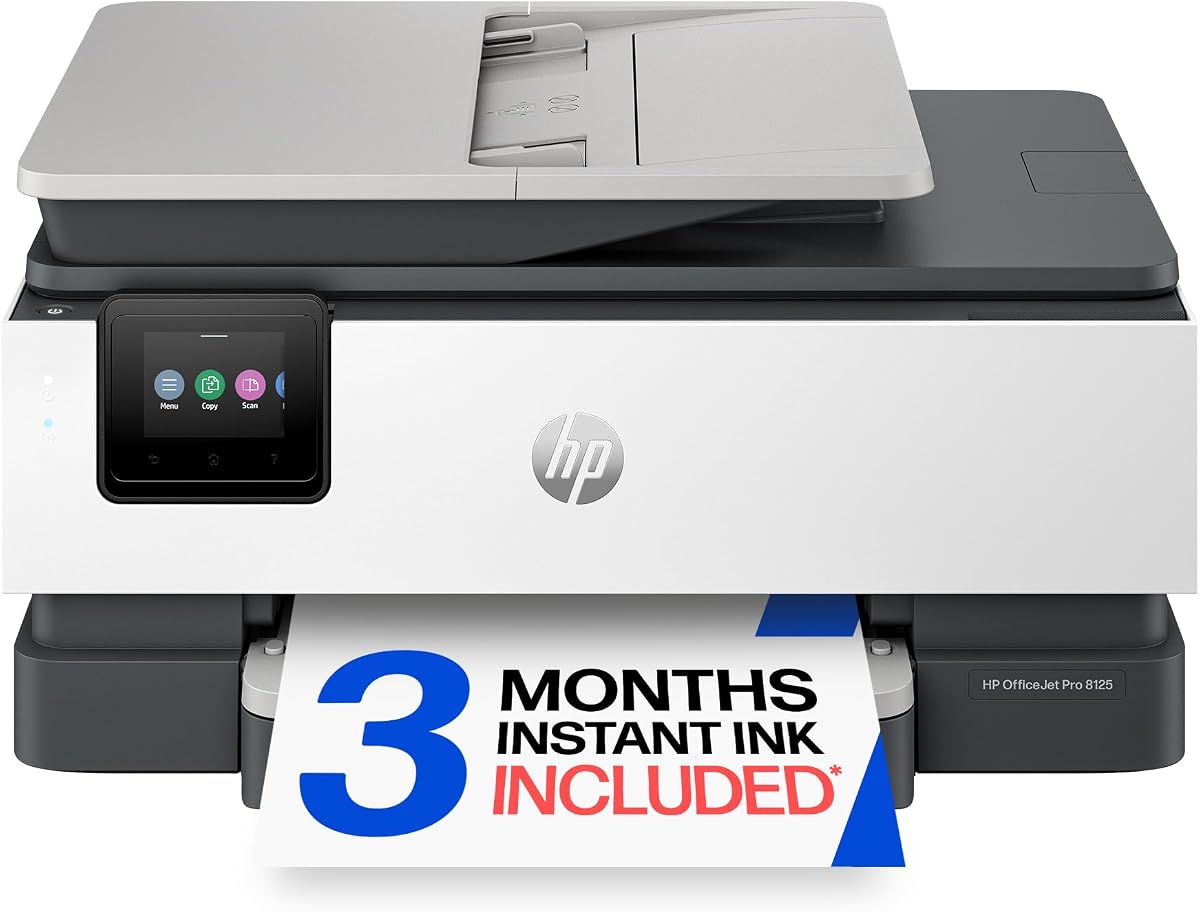
HP OfficeJet Pro 8125
3.9Editor score
Fast dual-band Wi-Fi
HP AI formatting tools
225-sheet input tray
Finding the right all in one printer for MacBook Air is crucial for seamless productivity. You need reliable wireless connectivity, high-quality prints, and easy setup to match your laptop's efficiency. This guide helps you navigate the options available today.
We compared ten top-rated models based on their compatibility with Apple devices, print speed, ink efficiency, and overall value. Each product was evaluated for its ability to handle documents and photos while fitting into modern home office spaces.
Each pick highlights key strengths and weaknesses to help you decide quickly. Please note that prices and availability can change frequently, so check the latest details before making your final purchase decision for your specific needs.
3.9Editor score

4.3Editor score

4.3Editor score
As an Amazon Associate we earn from qualifying purchases.
The following table provides a side-by-side comparison of all ten selected models. Review the key specifications and features to understand how each printer performs in real-world scenarios with your MacBook Air setup.




The HP OfficeJet Pro 8125 stands out as a robust option for professionals needing speed and smart features. It offers solid wireless connectivity and high-quality output suitable for business documents and presentations.
We may earn a commission when you buy through this link, at no additional cost to you.
Its standout feature is the integration of HP AI, which optimizes print formatting to reduce waste. The 2.7-inch touchscreen provides intuitive navigation, making it easy to manage tasks directly from the device.
While the printer performs well, users should be aware of the Instant Ink subscription model. Once the trial ends, the monthly fee might add up over time compared to standard cartridge purchases.
This model is ideal for home office users who prioritize speed and advanced formatting. If you need reliable daily printing with minimal setup hassle, this printer delivers strong performance.
HP AI automatically adjusts layouts to ensure web pages and emails print cleanly without wasting paper or creating awkward margins.
The dual-band Wi-Fi system ensures stable connections and resolves network issues automatically, keeping your workflow smooth without interruptions.
We may earn a commission when you buy through this link, at no additional cost to you.
The Epson EcoTank ET-2903 is selected as our Editor's Choice due to its revolutionary ink system. It eliminates cartridge waste and offers up to three years of ink in the box.
We may earn a commission when you buy through this link, at no additional cost to you.
Refilling is straightforward with keyed EcoFit bottles that prevent spills and mixing errors. The printer maintains consistent quality for photos and documents thanks to its high resolution.
Print speeds are moderate compared to laser options, which might be noticeable during large batch jobs. However, the cost savings on ink make up for the time difference over the long term.
Choose this if you print frequently and want to avoid constant cartridge replacements. It is a practical investment for users who value economy and sustainability in their printing habits.
Each replacement set is equivalent to about eighty cartridges, drastically reducing the frequency of purchases and the hassle of running out of ink.
By using refillable tanks instead of disposable cartridges, you help reduce plastic waste in landfills while maintaining excellent print quality.
We may earn a commission when you buy through this link, at no additional cost to you.
The Canon PIXMA TR7120 offers exceptional value for home users needing a reliable workhorse. Its compact size fits well in smaller spaces while providing essential all-in-one capabilities.
We may earn a commission when you buy through this link, at no additional cost to you.
Setup is quick and easy, allowing you to start printing via the Canon PRINT App or Apple AirPrint almost immediately. The OLED display helps monitor status clearly.
The paper tray capacity is smaller than business models, requiring frequent refills for heavy users. However, for typical home tasks like homework or occasional reports, it handles demands efficiently.
If you want a low-cost entry into wireless printing without sacrificing key features, this is a solid choice. It balances performance and price effectively for everyday needs.
This system delivers sharp text and vivid colors efficiently, ensuring your documents look professional without high maintenance requirements.
Dual-band Wi-Fi ensures you can print from anywhere in your home, maintaining stable connections even in busy network environments.
We may earn a commission when you buy through this link, at no additional cost to you.
The Canon PIXMA TS6520 focuses on style and simplicity for home users. It lacks an automatic document feeder but compensates with a sleek design and intuitive controls.
We may earn a commission when you buy through this link, at no additional cost to you.
Photos print beautifully on this model, making it a great fit for creative users. The OLED display makes checking ink levels and adjusting settings straightforward.
Without an ADF, multi-page scanning or copying requires manual page turns, which can be tedious. For single-page documents, however, it performs reliably and quickly.
This printer is best for casual users who prioritize aesthetics and photo quality over heavy document processing. It is a compact addition that blends well with home decor.
The 2-cartridge hybrid ink system supports borderless printing, allowing you to create vibrant photos up to 8.5 by 11 inches.
Print directly from your device using AirPrint or the Canon PRINT App for convenient on-the-go printing capabilities.
We may earn a commission when you buy through this link, at no additional cost to you.
The Brother Work Smart 1360 delivers reliable performance for everyday home office tasks. It is designed to be straightforward, offering essential functions without unnecessary complexity.
We may earn a commission when you buy through this link, at no additional cost to you.
You can print directly from cloud apps like Google Drive or Dropbox, which enhances workflow flexibility. The large paper tray reduces how often you need to reload paper.
While it handles documents well, color performance is adequate but not exceptional. The interface is functional but lacks the high resolution found in premium models.
Ideal for small offices needing quick black-and-white prints with occasional color needs, this model balances speed and utility effectively for standard tasks.
Seamless integration with popular cloud services allows you to access files directly without needing to transfer them to your computer first.
The Brother Mobile Connect app helps you manage printing and monitor ink usage efficiently from your smartphone screen.
We may earn a commission when you buy through this link, at no additional cost to you.
The HP Envy 6155 is tailored for home users who need to print colorful documents and photos. It features a large touchscreen that simplifies navigation for all ages.
We may earn a commission when you buy through this link, at no additional cost to you.
True-to-Screen technology ensures colors look vibrant and accurate, matching what you see on your monitor. HP AI also helps optimize email and web print layouts automatically.
While it supports borderless printing and high-quality photos, color speeds are modest. This is acceptable for home use where bulk printing is less common than personal projects.
Choose this printer if you value design and ease of use in a home environment. It is a versatile unit that balances personal and light professional needs well.
This feature ensures that your prints match the colors on your digital screen, avoiding dull or inaccurate results in photos.
Made with at least 60% recycled plastic content, this model reflects a commitment to reducing environmental impact in manufacturing.
We may earn a commission when you buy through this link, at no additional cost to you.
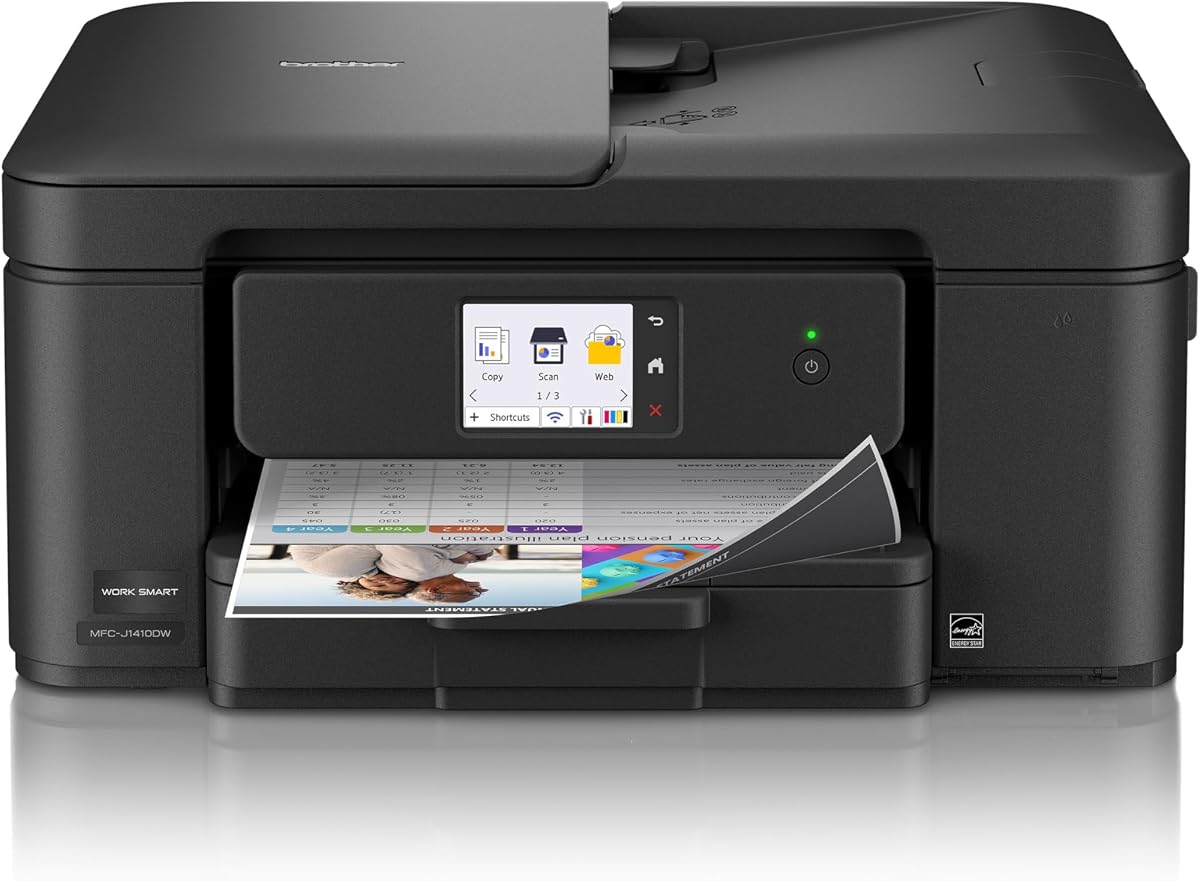
The Brother Work Smart 1410 offers a robust set of features for small offices and home users. Its large touchscreen makes interacting with the device intuitive and fast.
We may earn a commission when you buy through this link, at no additional cost to you.
Print speeds are quick, handling black documents efficiently. The inclusion of an automatic document feeder helps streamline copying and scanning tasks significantly.
Cloud app support allows for flexible printing from various sources without needing a direct cable connection. This adds convenience for modern remote work environments.
This printer is a strong contender for those needing reliable performance with minimal fuss. It supports both daily documents and occasional photo needs well.
Automatic duplex printing saves paper and time, allowing you to manage multi-page jobs efficiently without manual intervention.
Using genuine ink ensures optimal performance and reliability, preventing potential damage from non-genuine alternatives.
We may earn a commission when you buy through this link, at no additional cost to you.
The HP OfficeJet 3830 is a compact solution for home users needing fax capabilities alongside standard printing. It supports voice commands for convenient operation with smart home setups.
We may earn a commission when you buy through this link, at no additional cost to you.
It is designed to be quiet, making it suitable for shared spaces where noise levels matter. The wireless connectivity ensures you can print from devices anywhere in the house.
While older than newer models, it still provides reliable service for basic documents. The Instant Ink service helps monitor levels automatically to prevent shortages.
If you need a simple, quiet printer with fax options, this remains a viable choice. It fits well in tight spaces without compromising essential functions.
The optional quiet mode helps keep noise to a minimum, ensuring the printer does not disturb others in your home or office.
Works with Alexa to allow voice printing and status checks, adding a layer of convenience for smart home users.
We may earn a commission when you buy through this link, at no additional cost to you.
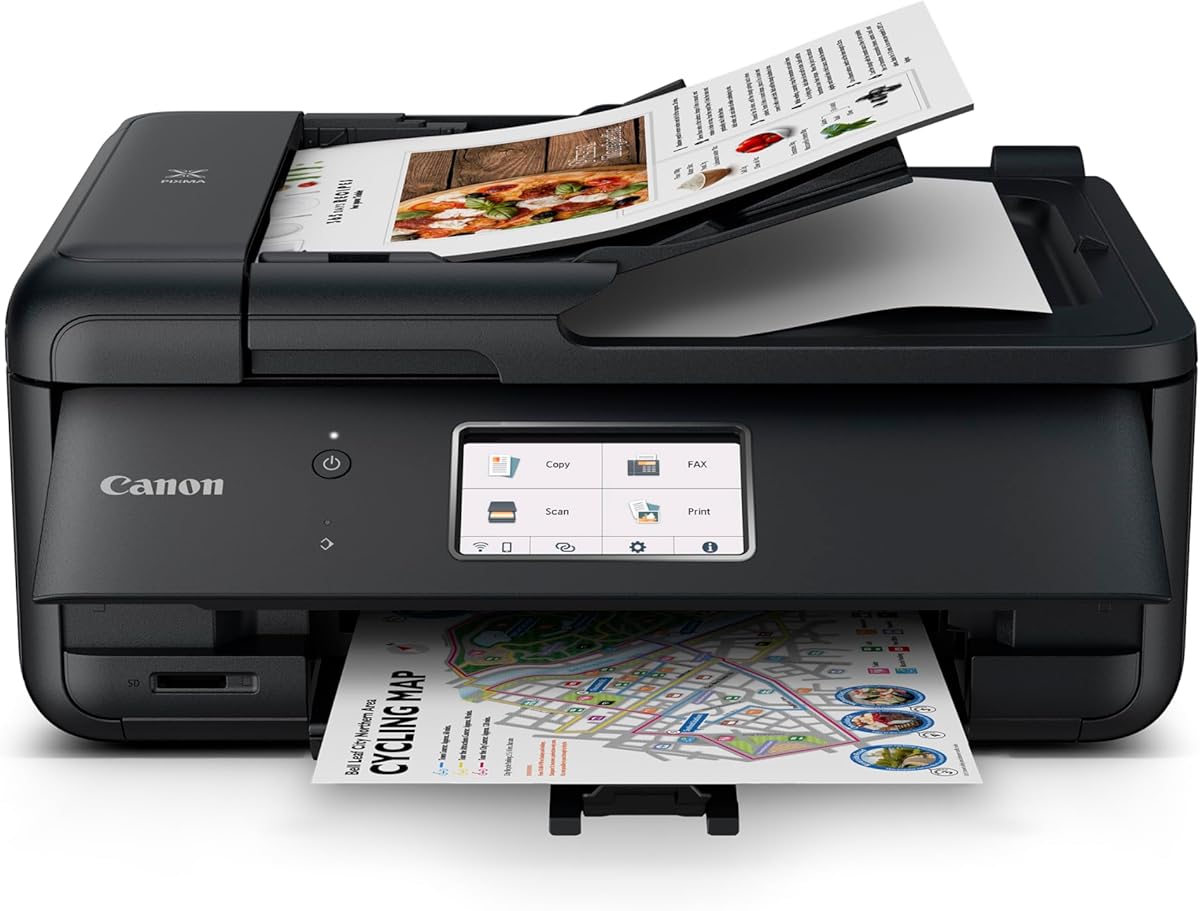
The Canon PIXMA TR8620a offers extensive features for users requiring high capacity and fax functionality. It is built to handle a variety of media types efficiently.
We may earn a commission when you buy through this link, at no additional cost to you.
Alexa smart reorder ensures you never run out of ink without manual intervention. The dual paper paths allow flexibility in feeding different sizes of paper.
Setup may take a bit longer due to the feature set, but the utility pays off for busy households. It supports borderless printing for professional photo results.
This model suits users who need a do-it-all machine. It handles both light and moderate loads with ease due to its large capacity.
Enrolling in smart reorders ensures you never have too much or too little ink supplies without needing a subscription.
The combination of cassette and rear feed allows you to switch between standard sheets and specialty media quickly.
We may earn a commission when you buy through this link, at no additional cost to you.
The Canon PIXMA TR4720 provides a budget-friendly entry into all-in-one printing. It includes essential features like fax and an automatic document feeder for basic tasks.
We may earn a commission when you buy through this link, at no additional cost to you.
Alexa smart reorder helps maintain ink levels without you having to remember to check manually. It is Energy Star certified, meaning it uses power efficiently.
Print speeds are slower compared to faster models, so it is best for occasional use. The small tray may require frequent refilling for large documents.
If you need a simple, functional printer for light home tasks, this is a practical pick. It balances cost and necessary features well for casual users.
The Energy Star rating indicates low power consumption, saving on electricity costs over time while helping the environment.
Wireless connectivity allows you to print documents directly from your phone or tablet for convenient mobile workflows.
We may earn a commission when you buy through this link, at no additional cost to you.
Selecting the right printer involves evaluating several key factors to ensure compatibility and performance with your MacBook Air.
Ensure the printer supports AirPrint for seamless integration without extra drivers. Wi-Fi stability is crucial for wireless printing from your laptop or mobile devices.
Check for dual-band support to maintain reliable connections in busy networks.
Consider the pages per minute (ppm) rating for both black and color output. High resolution is essential if you print photos or detailed documents regularly.
Look for models that offer crisp text and vibrant colors to meet professional standards.
Analyze the cost of ink cartridges versus tank systems. Refillable tanks often save money over time but may have higher upfront costs.
Check subscription options like Instant Ink for convenience and potential savings on monthly fees.
Review the input tray capacity to see how often you need to refill paper. An automatic document feeder (ADF) is beneficial for scanning multi-page documents.
Ensure the printer supports borderless printing if you frequently work with photos or full-page graphics.
Measure your workspace to confirm the printer fits comfortably. Compact designs are preferable for small desks or shared home office environments.
Look for models with a small footprint that do not compromise on essential features like paper trays.
Consider additional capabilities such as mobile apps, voice control, or cloud integration. These features streamline your workflow and reduce setup time.
Check if the printer supports specific services you use, such as Google Drive or Dropbox for direct printing.
Protect your data by choosing printers with built-in security features like firmware updates and encryption. This is vital for handling sensitive documents at home.
Look for brands that prioritize user data protection and network security measures.
Verify the length and coverage of the manufacturer warranty. Reliable customer support can save time if you encounter technical issues.
Choose brands with a strong reputation for quality and service in the printer industry.
Set up your printer by connecting it to your Wi-Fi network and installing the necessary drivers or apps. Ensure your MacBook Air is on the same network for smooth communication.
Maintain print quality by running cleaning cycles periodically and keeping the printhead protected. Use high-quality paper to avoid jams and ensure consistent results.
Monitor ink levels and reorder supplies before running out. Keeping a spare cartridge on hand prevents interruptions to your workflow.
Most of these models support Apple AirPrint, allowing you to print directly from macOS without installing additional drivers. This simplifies the setup process and ensures compatibility with your system.
First, ensure both devices are on the same Wi-Fi network. Restarting the router and the printer often fixes temporary glitches. Check for firmware updates that might improve stability.
Some printers, like HP models, may block non-original cartridges to ensure quality. It is recommended to use genuine ink to avoid potential damage or voided warranties.
Models with refillable ink tanks like the Epson EcoTank are ideal for high-volume printing. They significantly reduce the cost per page compared to traditional cartridges.
Use the printer's companion app or AirPrint to send photos directly. Select the borderless option for full-bleed prints if your model supports it.
This often indicates empty cartridges or a clogged printhead. Run a cleaning cycle or check ink levels. Ensure you are using compatible cartridges for your model.
Most models listed in this guide support automatic duplex printing. This feature prints on both sides of the paper to save space and reduce material costs.
Install the manufacturer's scanning software or use the Preview app on macOS. Select the connected scanner to initiate the scan and save the file directly.
We have reviewed ten top models ranging from budget-friendly options to premium professional choices. Each offers distinct advantages depending on your specific home or office needs.
Prioritize features that match your workflow, such as ink efficiency for heavy users or compact design for limited spaces. Compatibility with macOS should always be a key consideration.
Remember to verify current availability and pricing before purchasing. These guides are subject to change, so staying updated ensures you get the best deal possible.