
USB3.0 KVM Switch HDMI 4K@60Hz for 4 Computers Share 1 Monitor
4.2Editor score
Affordable price point
4K@60Hz video support
Front panel buttons
Includes wired remote
This guide compares the top 10 KVM Switch for 4 Computers to help you choose the right model for your multi PC workspace needs.
Managing multiple computers on a single desk can quickly become chaotic with tangled cables and constant switching. A high quality KVM Switch for 4 Computers streamlines your workflow by letting you control four systems with one set of peripherals and monitor.
We have carefully evaluated the leading models available today based on video quality, connectivity options, ease of use, and overall build reliability. Our testing criteria focus on real world performance in home offices and professional workstations requiring efficient multitasking.
Each pick below highlights specific strengths and ideal use cases to help you find the perfect match for your setup. Please note that product availability and pricing can change frequently so always verify details before making your final purchase decision.
4.2Editor score
4.8Editor score

4.7Editor score
The following table provides a side by side overview of all ten models included in this guide. Compare their key specifications to determine which device aligns best with your specific hardware and performance requirements.


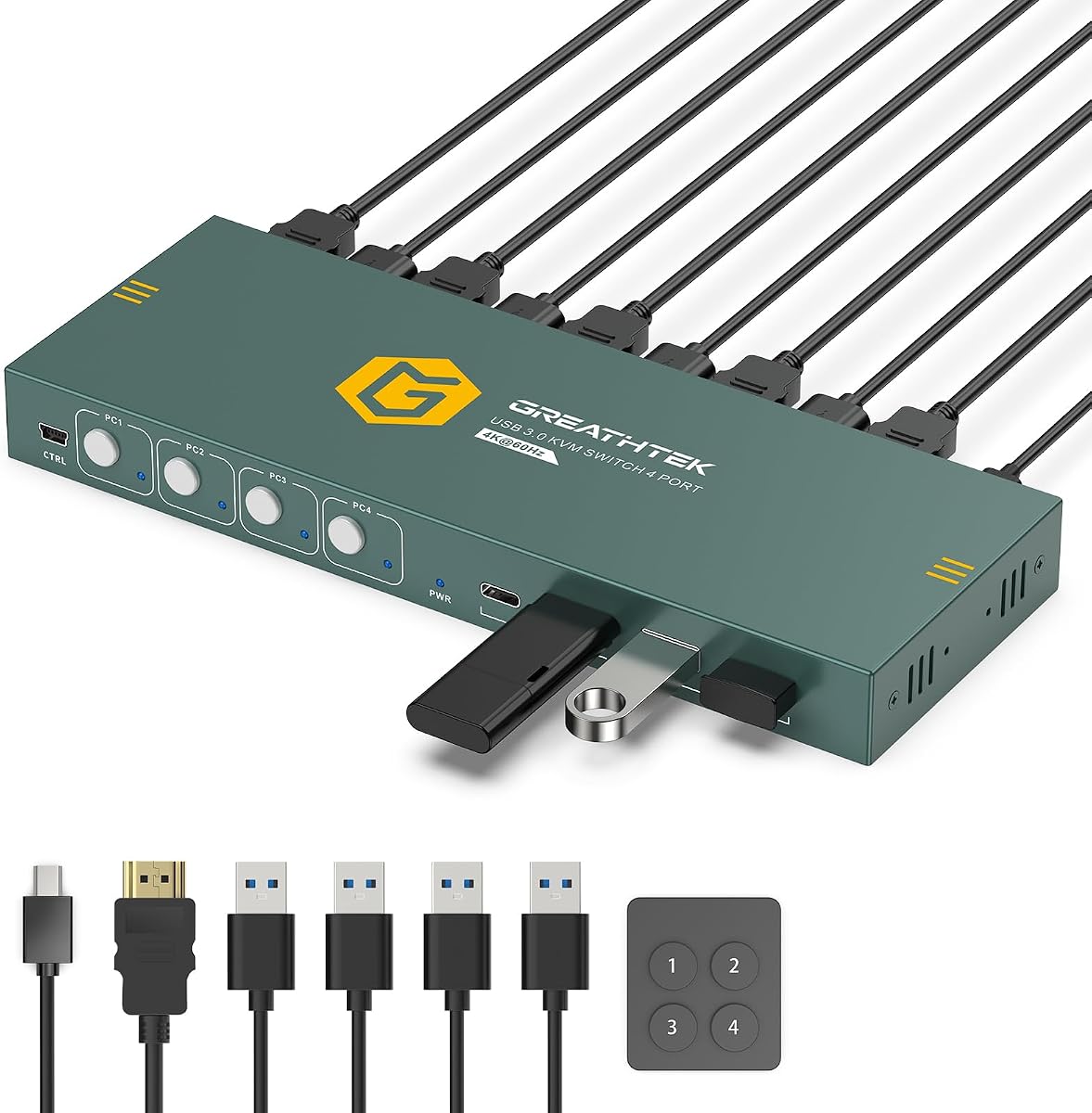
This top rated model offers a seamless experience for users needing to manage four computers on a single monitor. It earns our Editor's Choice badge due to its reliable performance, clear video output, and thoughtful inclusion of a wired remote control.
We may earn a commission when you buy through this link, at no additional cost to you.
The device supports crisp 4K resolution at 60Hz which ensures smooth visuals for both work and media consumption. With six USB ports available including USB 3.0 and USB-C options you can connect keyboards, mice, printers, and drives to share across all systems.
While it lacks hotkey switching which some power users prefer the physical buttons and remote provide quick access without software reliance. The included mounting brackets and cables make setup straightforward for any desk configuration.
This is the ideal choice for office professionals or home users who prioritize stability and ease of use. If you need a plug and play solution that handles high resolution video without fuss this KVM switch delivers excellent value.
The 4K@60Hz support ensures your content looks sharp and smooth without lag when switching between active computers.
With multiple USB ports including a USB-C port you can share a wide variety of devices across your four PCs easily.
We may earn a commission when you buy through this link, at no additional cost to you.
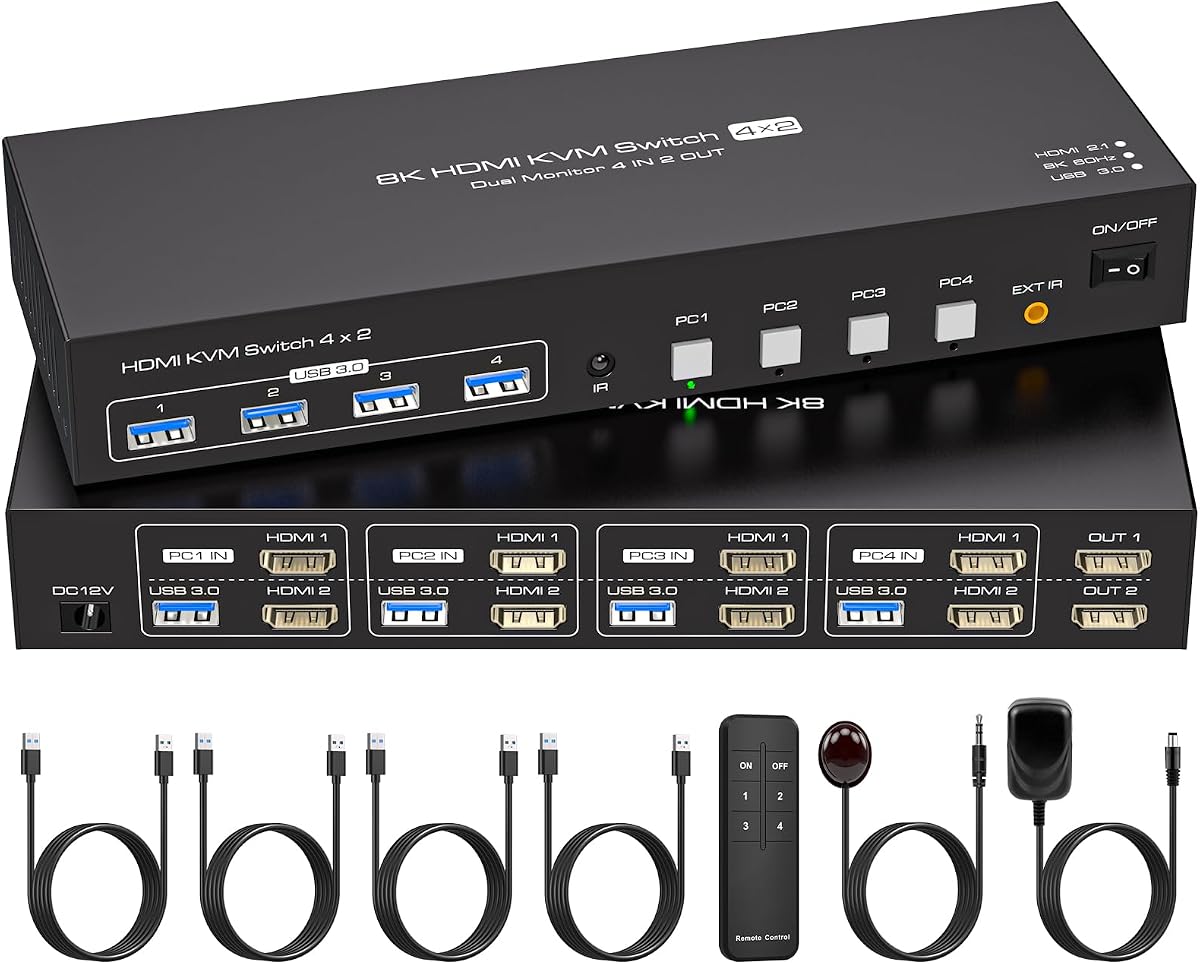
For users with dual monitor setups this KVM switch offers a powerful solution to manage two displays across four computers. It stands out with its support for 8K resolution and flexible display modes that adapt to various workflows.
We may earn a commission when you buy through this link, at no additional cost to you.
The device features EDID emulation which prevents window rearrangement every time you switch sources. This is a significant quality of life improvement for multitaskers who rely on consistent screen layouts during their workday.
Setting it up requires that each computer has two HDMI outputs which may limit compatibility for older machines. However for modern workstations the ability to extend or duplicate screens across two monitors adds immense productivity.
This model is best suited for designers or analysts who need multiple screens to maximize their workspace efficiency. If you need to control two monitors simultaneously across four PCs this unit provides the necessary connectivity and reliability.
Choose between extend or copy modes to match how you use your dual monitor setup across multiple computers.
Support for 8K@60Hz means you can use this with high end displays without compromising on video quality.
We may earn a commission when you buy through this link, at no additional cost to you.
UGREEN delivers a robust KVM switch with an impressive array of USB ports allowing extensive peripheral sharing. This model is ideal for users who need to connect more devices than the standard four USB ports can accommodate.
We may earn a commission when you buy through this link, at no additional cost to you.
The inclusion of two USB 2.0 ports alongside four USB 3.0 ports gives you flexibility for low and high speed devices. This ensures that your printer or webcam works smoothly alongside your primary keyboard and mouse setup.
EDID emulation helps keep your display settings stable when switching between computers preventing annoying resets. The wired controller allows you to place the switch away from your desk for a tidier workspace.
Choose this option if you have a busy desk with many connected devices that need constant access. The build quality and feature set make it a solid middle ground between basic and premium solutions.
The six total USB ports mean you can add extra devices like scanners or hubs without extra dongles.
EDID emulation ensures your monitors remember your settings so windows stay in place after every switch.
We may earn a commission when you buy through this link, at no additional cost to you.
This premium unit stands apart by supporting four independent monitors across four computers making it perfect for command centers. It supports both HDMI and DisplayPort allowing it to integrate with a wider range of high end hardware.
We may earn a commission when you buy through this link, at no additional cost to you.
The addition of a dedicated audio jack ensures you do not lose sound quality when switching between systems. This is a common pain point in cheaper KVM switches which often cut audio or require manual cable swaps.
While the price is higher the ability to manage four screens at once is a game changer for professionals. You get high refresh rates like 4K@144Hz which is excellent for graphic work or video editing tasks.
Select this premium model if you need maximum flexibility and high fidelity video and audio output. It is an investment for setups where downtime and quality matter significantly to daily operations.
Managing four screens at once lets you run complex workflows without physical clutter on your desk.
The included audio jack means you get crisp sound for video calls and media alongside high quality video.
We may earn a commission when you buy through this link, at no additional cost to you.
This switch is designed for users who need high refresh rate displays for gaming or smooth video editing. It leverages HDMI 2.1 to deliver 4K at 120Hz which is a significant upgrade over standard 60Hz models.
We may earn a commission when you buy through this link, at no additional cost to you.
The built in EDID function helps maintain resolution stability when you switch computers. This prevents flickering and ensures your system always knows what display it is connected to for consistent performance.
Setup is straightforward with plug and play compatibility and an included IR remote. This allows you to control your KVM from a distance without getting up from your desk every time.
Choose this option if you have a high refresh rate monitor and want a smooth visual experience. It balances cost and performance well for users who need the speed of HDMI 2.1.
4K at 120Hz ensures your motion is fluid for editing and gaming without tearing or stuttering.
The IR remote lets you control the switch from anywhere on your desk making multitasking faster.
We may earn a commission when you buy through this link, at no additional cost to you.
UGREEN offers a sturdy aluminum enclosure that protects the internals and helps dissipate heat during use. This makes it a reliable choice for environments where the device needs to run continuously for long periods.
We may earn a commission when you buy through this link, at no additional cost to you.
It supports 8K@60Hz resolution so it future proofs your setup for high end monitors. The USB 3.0 ports ensure your peripherals connect at full speed so you do not lose performance to bottlenecks.
One thing to note is the lack of EDID emulation which might cause display resets on some systems. However the build quality and raw performance make it a solid candidate for future proof setups.
This model is best for tech enthusiasts who want durable hardware and high resolution support. If you prefer metal construction and plan to use high resolution displays soon this unit fits the bill.
The aluminum body keeps the device cool and safe which extends its lifespan in daily use.
8K support ensures you are ready for the next generation of ultra high definition monitors.
We may earn a commission when you buy through this link, at no additional cost to you.
This KVM switch offers a great entry level option for those who need basic functionality without breaking the bank. It provides clear 4K video and reliable switching for everyday office work and study.
We may earn a commission when you buy through this link, at no additional cost to you.
The front panel buttons and included remote give you two ways to control your system. This dual approach ensures you can switch quickly whether the switch is hidden under a desk or out in the open.
USB connectivity is solid with three USB 3.0 ports which handles most standard peripherals. While it may not have as many features as premium models it does the job efficiently.
Ideal for students or home offices with four PCs and limited space. This unit simplifies your setup and keeps your desk tidy without requiring any technical knowledge to operate.
You get all the essential features like 4K video and switching at a very accessible price point.
Both front buttons and a remote ensure you can switch systems no matter where the unit is placed.
We may earn a commission when you buy through this link, at no additional cost to you.
Hearvo provides a reliable option for users who need to watch protected content on their shared monitor. The HDCP 2.2 compliance ensures you can stream encrypted video without interruptions or errors.
We may earn a commission when you buy through this link, at no additional cost to you.
Adaptive EDID helps match the display settings automatically when you switch computers. This reduces the need for manual configuration and keeps your workspace functional during multitasking sessions.
The package includes anti-slip pads and a protection plan which adds value and peace of mind. These small touches show attention to detail in the user experience beyond just the core functionality.
This switch is suitable for general office work or home entertainment setups requiring content protection. If you need a steady connection for streaming or media tasks this unit offers strong support.
HDCP 2.2 compliance means you can watch protected video on your shared monitor without issues.
Anti-slip pads keep the switch steady on your desk so cables do not pull it around during use.
We may earn a commission when you buy through this link, at no additional cost to you.
This unique model allows three monitors to be shared across four computers making it great for complex workstations. It supports HDMI and DisplayPort 1.4 for high refresh rates and resolution across multiple screens.
We may earn a commission when you buy through this link, at no additional cost to you.
The package includes all necessary cables and a power adapter so you can start using it right away. This reduces the hassle of hunting for compatible cables that support 8K or 4K high refresh rates.
It requires that each computer supports three displays so it is not for every setup. However for CAD work or trading platforms where screen space is vital this unit provides a clean solution.
Choose this if you need more than two screens and want to keep everything organized. The high refresh support ensures your extra monitors run smoothly alongside your main display.
Using three screens on one monitor setup expands your workspace significantly for productivity.
Included high speed cables and power adapter save you from buying extra parts for setup.
We may earn a commission when you buy through this link, at no additional cost to you.
This unit delivers dual monitor support with high refresh rates making it a strong competitor for modern setups. EDID emulation ensures your display settings remain consistent which is rare in many budget dual monitor switches.
We may earn a commission when you buy through this link, at no additional cost to you.
The metal build suggests durability and reliability for daily use. It supports copy and extend modes so you can choose how your screens behave across different computers during your workday.
While it requires two HDMI ports on each computer this limits compatibility for older systems. But for new rigs with dual outputs this switch offers a robust way to manage your dual screen workspace.
Select this model if you need two screens and want high performance without a premium price. It is a great middle ground for users who need speed and stability in their dual monitor setup.
4K at 120Hz on dual screens ensures smooth motion even with multiple windows open.
EDID emulation prevents your windows from jumping around when you switch between computers.
We may earn a commission when you buy through this link, at no additional cost to you.
Selecting the right KVM switch involves checking your monitor capabilities, USB needs, and desired switching methods to ensure a smooth workflow.
Ensure the switch supports the resolution and refresh rate of your monitor. Look for 4K@60Hz or higher for clear visuals and smooth motion especially if you edit video or work with design apps.
Choose a model that matches your display specs to avoid blurry images or limited refresh rates.
Decide if you need to control one, two, or three monitors. Dual and triple monitor KVMs require computers with multiple video outputs but offer more workspace flexibility for multitasking.
Select a switch that supports your desired screen count to avoid hardware bottlenecks.
Check how many USB devices you need to share. USB 3.0 ports provide faster data transfer for drives and webcams while extra ports let you add printers or hubs without unplug.
Count your active devices and choose a KVM with enough ports and the right types for your peripherals.
Look for physical buttons, wired remotes, or hotkey support depending on your desk layout. Hotkey switching offers speed but physical buttons provide reliability if software is unavailable.
Pick a switching method that fits your workflow to ensure you can change computers quickly.
EDID emulation keeps your display settings stable when switching. This prevents windows from rearranging or screens from flickering which is vital for uninterrupted work sessions.
Prioritize a model with EDID features for a smoother and more predictable user experience.
Most KVM switches need an external power adapter to run stable high resolution video and USB devices. Verify the power supply is included or available before purchasing.
Ensure the unit has a reliable power source to avoid connectivity issues during use.
Metal enclosures tend to dissipate heat better and last longer than plastic. A sturdy build helps protect the device if it is moved or placed under desks frequently.
Consider durable construction to ensure long term reliability in busy workspaces.
Make sure your HDMI or DisplayPort cables match the KVM requirements. High resolution video often needs specific cable versions like HDMI 2.0 or 2.1 for full speed performance.
Verify cable support for your desired resolution to avoid signal loss or limited performance.
Connect each computer to the KVM switch using the provided HDMI or DisplayPort and USB cables. Ensure the KVM is plugged into a power outlet and your monitor is connected to the switch output.
Use the front buttons or remote to cycle through active computers. The LED indicators will show which PC is currently connected to your monitor and peripherals.
Keep the switch in a well ventilated area to prevent overheating. Clean the ports regularly with a dry cloth to maintain a stable connection for your devices.
Most KVM switches do not work well with docking stations. Direct connection to your computer is recommended to avoid signal loss or unstable USB performance during switching.
No most KVM switches are plug and play and do not require drivers. Simply connect the cables and the switch will work automatically with your operating system.
EDID emulation helps your computers remember the monitor settings. This prevents your screen from resetting or rearranging windows each time you switch between active PCs.
Ensure your cables and computer ports support the desired resolution. Using older HDMI cables or mismatched ports can limit the output quality from your KVM switch.
Yes most KVM switches support both Windows and Mac systems. Just ensure your USB and video ports are compatible with the KVM inputs for both machines.
Yes many modern KVM switches support 4K resolution at 60Hz or higher. Check the product specs to confirm it matches your monitor capabilities.
We found that the HDMI KVM Switch for 4 Computers leads our list for overall value and reliability. It balances video quality and peripheral support well for most users.
Consider your monitor needs and how many USB devices you use daily. Premium models offer dual or triple screen options while budget ones focus on simple single monitor setups.
Always verify that your current hardware matches the switch requirements before buying. This helps you avoid compatibility issues and ensures a smooth setup process.